Move your Valheim world to your server, step by step
Already playing with your friends on a world created on your PC? Get it on your ForgeServer server in 5 minutes, with your buildings, your map and your defeated bosses. Your world also stays on your PC: nothing is moved, only copied. Example used: a world named “Monde”. The screenshots come from a French Windows and the French version of L'Atelier.
Get your world ready
The world is on the PC of whoever created it (the one who “hosted” the game).
Open Valheim's worlds folder
Open File Explorer (Windows + E), click the address bar, paste this path and press Enter:
%USERPROFILE%\AppData\LocalLow\IronGate\Valheim\worlds_local
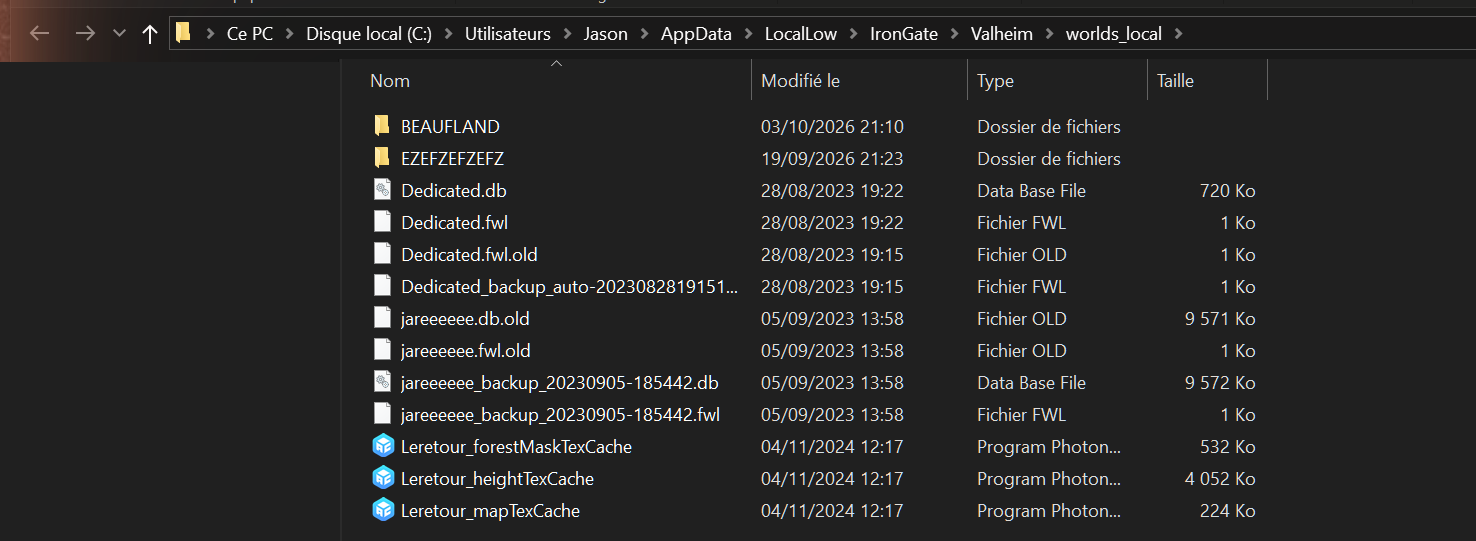
The folder is empty, or your world isn't there? It is probably saved in the Steam cloud. Start Valheim, go to the world selection, open the save management and switch your world to local, then come back here.
Find your world
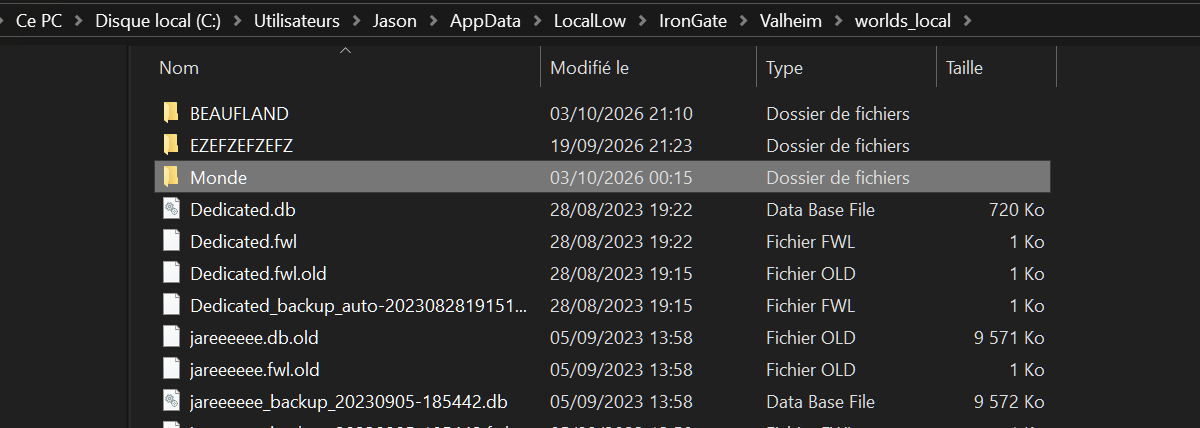
CASE 1Current Valheim: a folder named after your world
Since Valheim 1.0, each world is a folder with its name. Here, the world is called “Monde”.
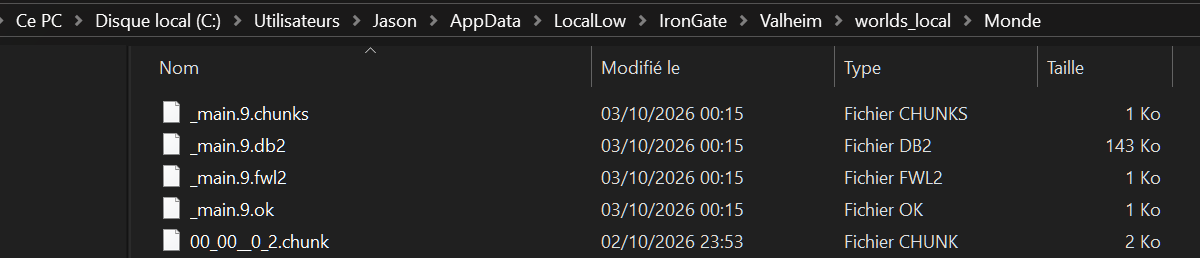
To be sure, open it: a real world contains _main…fwl2, _main…db2 and .chunks files.
CASE 2Older world: two .fwl and .db files
A world created before Valheim 1.0 is made of two files with the same name, for example Dedicated.fwl and Dedicated.db (visible in the step 1 screenshot). You need both, together.
PITFALLWhat is NOT your world
Some folders only contain cacheMinimap… files: that is just the map remembered from servers you have played on. It is not a world, L'Atelier will refuse it.

Don't pick items ending in _backup_auto… or .old either: those are old automatic backups.
Zip your world
Right-click your world's folder, then:
- Windows 11: Compress to ZIP file;
- Windows 10: Send to → Compressed (zipped) folder.
A Monde.zip file appears next to the folder:

Older world (case 2): no ZIP needed, you can upload the two .fwl and .db files directly, together. One world per upload.
Upload your world to the server
Only the server owner can import a world (not moderators).
Open your server's “My world” page
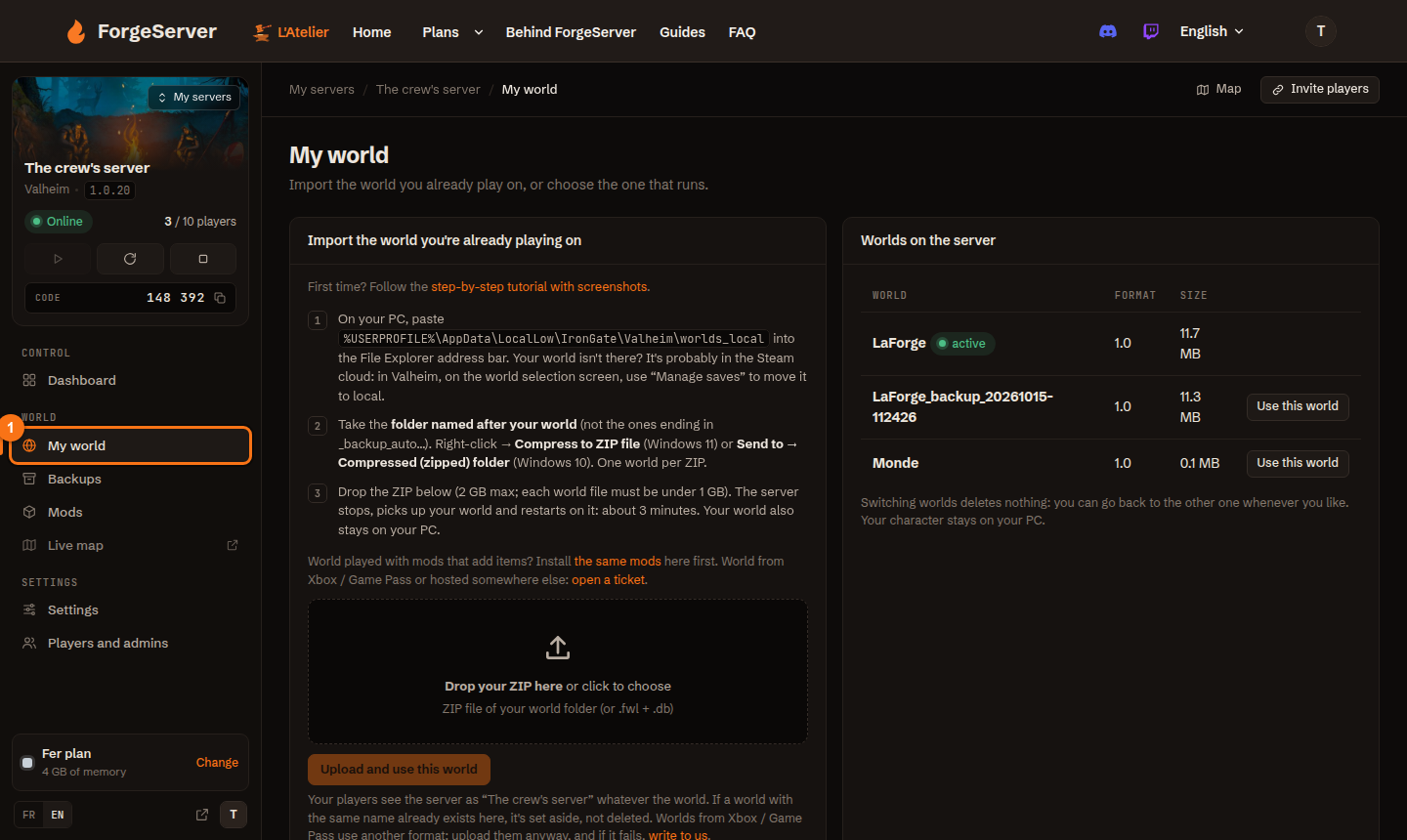
On forgeserver.fr/atelier, click your server, then My world in the menu on the left (1). In the middle, the upload; on the right, the worlds already on your server.
Drop your ZIP and upload it
Drag your Monde.zip file into the box (or click inside to pick it). Its name shows up and the button turns orange:
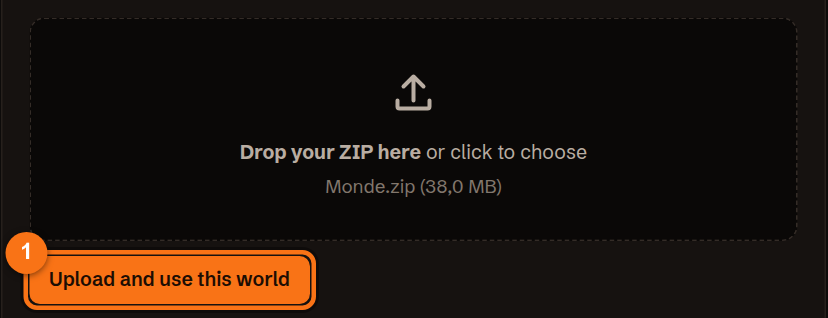
Click Upload and use this world. The server stops, takes your world and restarts on it: allow about 3 minutes.
Don't close the page during the upload (the percentage shows under the button). Warn your friends: the server restarts, anyone connected will be disconnected for a few minutes.
Check, then join your world
In Worlds on the server, your world shows up marked active. The previous world is not erased: the Use this world button lets you switch back whenever you want.
Then join the server as usual (join code or player link): your buildings and your map are there. Your character stays on your PC, as in any Valheim game.
Did your world use mods that add items or building pieces? Install the same mods on the server (Mods page) before playing, otherwise those items would disappear. See the mods tutorial.
Not working?
“No world found”
You uploaded a folder that only contains the map cache (cacheMinimap…): that is not a world (step 2). For a current world, zip the folder that contains _main…fwl2; for an older world, upload the .fwl and the .db together.
“Invalid world name”
The world name must be 20 characters at most, using only unaccented letters, digits, spaces, hyphens or underscores. Rename the world in Valheim, then try again.
“Not enough space”
Your server doesn't have enough disk space left for this world. Delete an old unused world, or upgrade to a higher plan (you only pay the difference).
My world comes from Xbox / Game Pass
These worlds use another format. Upload it anyway; if it fails, open a ticket: we'll handle it.
My world is with another host
Download the worlds_local folder from your former host's panel (or FTP access), then resume at step 2. Stuck? Open a ticket.
I want to go back to my previous world
My world page, list on the right: Use this world on the previous one. Nothing is ever erased when switching worlds.